Free Seating Chart Template
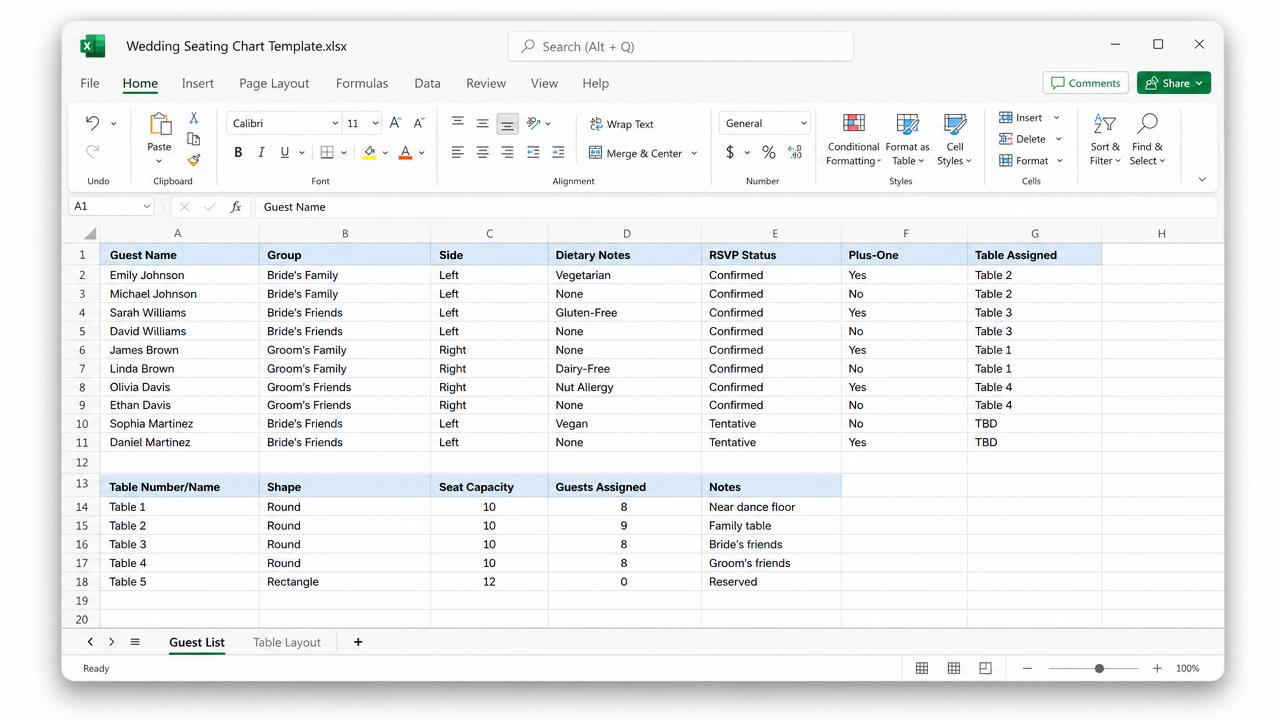
If you just need a simple way to lay out tables and assign guests without committing to software, a template is often the fastest starting point. Below is a free, ready-to-use structure you can copy into a spreadsheet, along with a look at what a more polished, pre-built version looks like.
What's in a Good Seating Chart Template
A usable template needs two parts working together: a guest list and a table layout. Here's the minimum structure worth including.
Guest List Section
| Column | Purpose |
|---|---|
| Guest Name | Full name as it should appear on place cards |
| Group | Household, family, or friend group |
| Side | Bride's side / Groom's side / Neutral (or Host / Client for corporate events) |
| Dietary Notes | Vegetarian, allergies, etc. |
| RSVP Status | Confirmed, Pending, Declined |
| Plus-One | Yes/No, and name if known |
| Table Assigned | Fill in as you go |
Table Layout Section
| Column | Purpose |
|---|---|
| Table Number/Name | e.g., "Table 1" or "Head Table" |
| Shape | Round, rectangular, etc. |
| Seat Capacity | Total seats available |
| Guests Assigned | Running count, should never exceed capacity |
| Notes | e.g., "near dance floor," "accessible seating" |
How to Use This Template
- Fill in the guest list first, sorted by RSVP status, so you're only actively seating confirmed guests.
- Set up your tables with accurate seat counts before assigning anyone — this avoids the common mistake of overfilling a table halfway through.
- Assign by group, not by individual guest, keeping families and friend groups together before fine-tuning anything else.
- Track your running counts per table so you catch overfilled tables early, rather than after printing.
- Keep one master version. If more than one person is editing (a partner, a planner, a coordinator), agree on a single source of truth to avoid conflicting versions.
Where a Basic Template Falls Short
A plain template gets the information organized, but it has real limits once planning gets more complex:
- No visual room layout — you're working with rows and columns, not an actual floor plan that matches your venue.
- No drag-and-drop — moving a guest means manually editing cells rather than just dragging them to a new seat.
- Nothing guest-facing — guests still need a printed copy or someone telling them where to sit; there's no live display or self-serve lookup.
- Version control gets messy once more than one person needs to make changes.
A More Complete Version
The template structure above is included, pre-built and pre-formatted, in the free Excel seating planner available with LiveSeatPlan — so you don't have to build the columns and formulas yourself.
And if you want to go beyond a spreadsheet entirely — an actual visual floor plan, drag-and-drop guest assignment, and a live display guests can check on the day — LiveSeatPlan imports your existing guest list directly and picks up from there.
Frequently Asked Questions
Is this template really free?
Yes — the structure above can be copied into any spreadsheet tool at no cost. A pre-built, ready-to-use version is also available as part of LiveSeatPlan.
Can I use this template for a corporate event instead of a wedding?
Yes — swap the "Side" column for something like "Department" or "Host/Client," and the rest of the structure works the same way.
What's the easiest way to move from a spreadsheet template to a live visual chart?
Most dedicated seating chart tools, including LiveSeatPlan, let you import your existing spreadsheet directly, so your guest list carries over without re-entering anything.
How do I avoid overfilling a table when using a spreadsheet template?
Keep a running count of guests assigned per table (the "Guests Assigned" column above) and check it against seat capacity before finalizing anything.
Get the free seating planner with LiveSeatPlan.